Designing a Chair in CAD: Crafting Vision into Reality with SolidFace
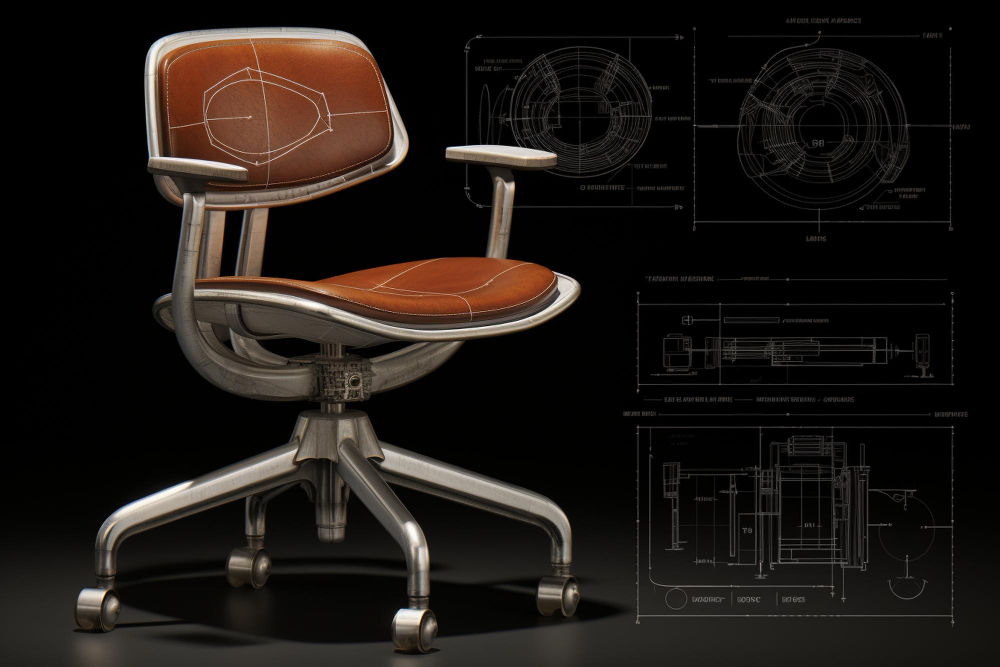
In the realm of design, every detail is meticulously considered. A well-designed object, be it a chair, an aircraft, or a building, embodies a unique trend and style, striving for originality, captivating aesthetics, and distinctive lines. Achieving this level of precision and innovation in physical objects begins with a solid design foundation.
The Fundamental Role of Lines in CAD
At its core, design is built upon the concept of lines—the continuous succession of points in space. In the digital world of Computer-Aided Design (CAD), lines form the essential building blocks of any model. This article will guide you through the process of drawing a chair, leveraging the powerful capabilities of **SolidFace CAD software**. As you define lines with varying directions, thicknesses, and dimensions within SolidFace, your initial concepts will progressively transform into a detailed and refined design.
While the range of chair designs is limited only by imagination, the fundamental principles and steps for creating them in CAD are universally applicable. Despite a wealth of online tutorials and resources, the core methodology for conceptualizing and rendering a chair in CAD remains remarkably consistent across different approaches.
Why Utilize CAD Software for Furniture Design?
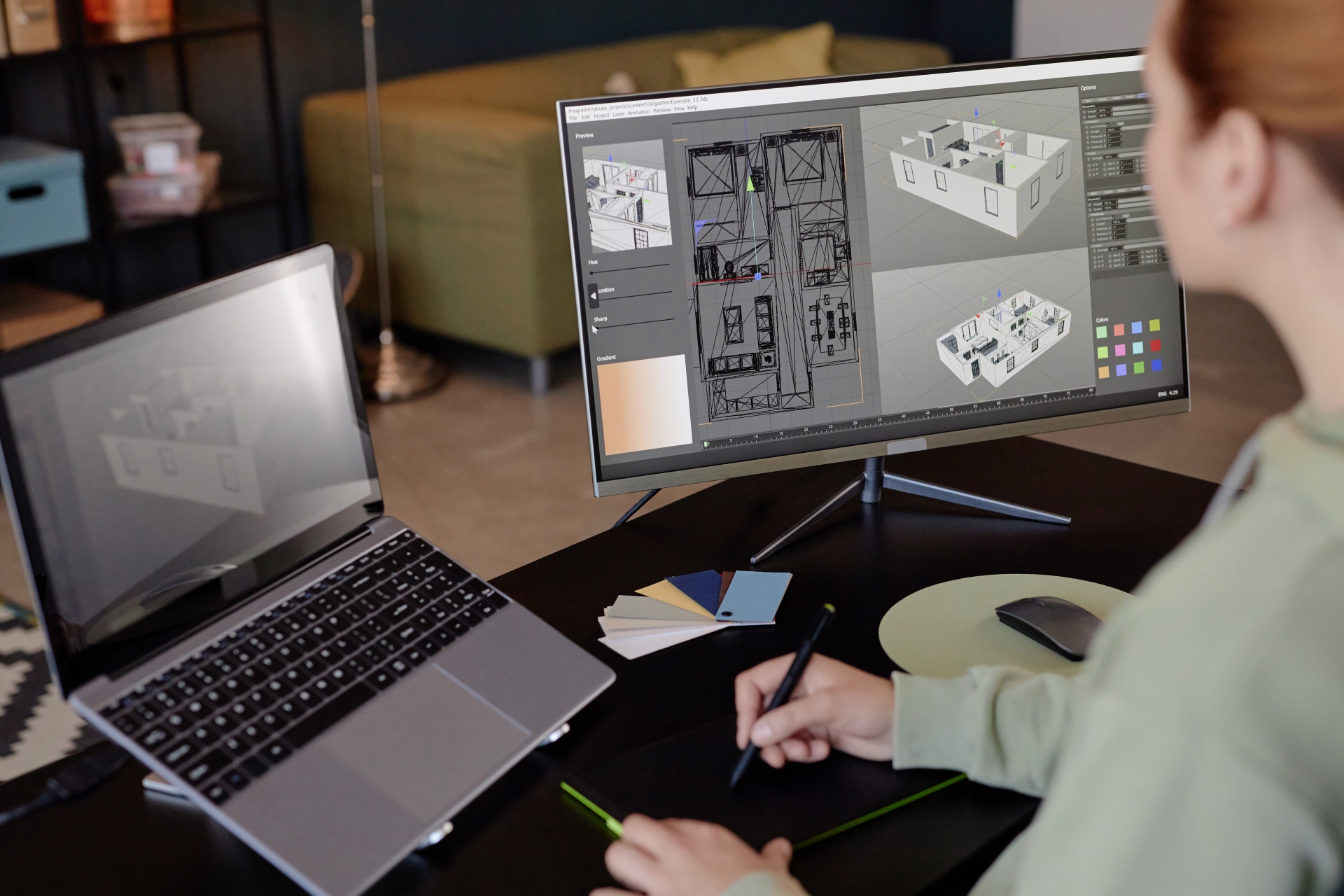
CAD (Computer-Aided Design) software has revolutionized the design landscape, empowering engineers, graphic designers, and architects to achieve unprecedented levels of precision and creativity. This global technology, which transformed design workflows long before 1999, simplifies the creation, modification, and optimization of objects with remarkable ease.
One of CAD’s most significant advantages is its versatility and specialization. From intricate screws to towering skyscrapers, and indeed, the chair we are focusing on today, specialized CAD programs cater to diverse design needs. Users can select software based on complexity (beginner to advanced), dimensionality (2D or 3D modeling), and even advanced functionalities like thermal or motion analysis, typically reserved for highly complex equipment designs.
Selecting the Right CAD Software for Your Furniture Projects
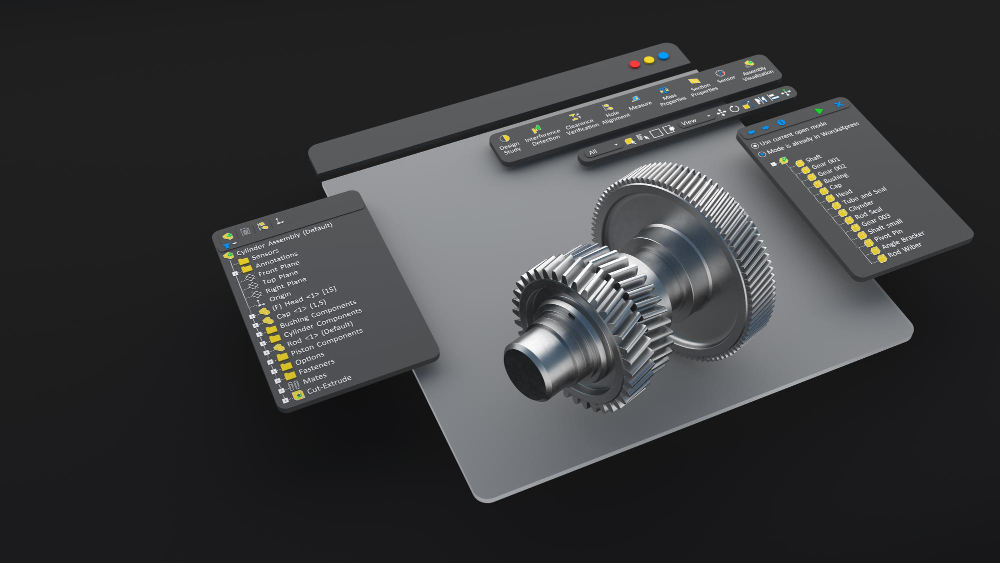
To effectively implement any design instructions for drawing a chair, access to reliable CAD software is indispensable. The market offers a vast array of solutions. While AutoCAD remains a dominant force, several robust alternatives exist, including free options and comprehensive full versions. Among these, **SolidFace stands out as a powerful 3D modeling program**, alongside SketchUp Maker, SketchUp Pro, Polyboard, and QuickMobel, all tailored for furniture design.
When exploring CAD options online, you’ll encounter numerous offerings. Many providers offer trial versions or free samples to introduce users to their capabilities, while some even provide completely free beginner programs. These initiatives aim to engage new users, often leading them to invest in more advanced versions as their skills and project demands grow. For professional-grade 3D modeling and design flexibility, SolidFace offers an intuitive and feature-rich environment.
Getting Started: Drawing a Chair in 2D with CAD
A 2D drawing represents an object using two dimensions, typically depicting front and side views projected across X and Y axes. This method, common in photography, books, and blueprints, translates three-dimensional forms onto a flat plane, conveying a sense of depth without true spatial volume.
In SolidFace, the process of drawing a chair in CAD is highly flexible; you can begin with any component or view. Initially, your design might appear as a collection of unconnected lines, but with each successive step and strategic placement, these lines will coalesce, gradually bringing your chair design to life.
To embark on a step-by-step guide for drawing a chair in SolidFace, you would typically begin by defining the main profiles and dimensions, then incrementally adding details. *[Note: The original content provided cuts off here. A complete guide would detail specific CAD commands and techniques for sketching base shapes, adding supports, refining contours, and adding other components in a 2D environment.]*